WordPress with Docker Compose on a VPS: A Working compose.yaml
A working WordPress Docker Compose setup for a VPS: official wordpress and mariadb images, .env passwords, nginx reverse proxy with HTTPS, updates, backups and WP-CLI.
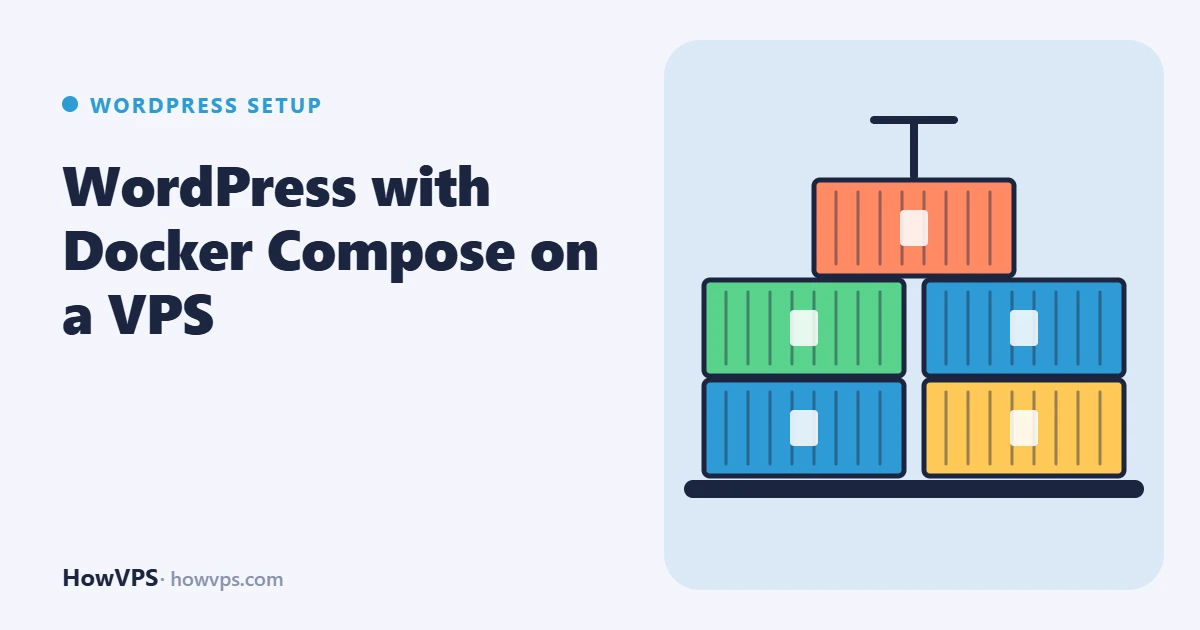
A WordPress Docker Compose setup needs two containers, the official wordpress image and mariadb, plus two named volumes so that the site files and the database survive when containers are replaced. The file below is complete: copy it, set two passwords and run docker compose up -d.
On a VPS the container should not face the internet directly. The setup publishes WordPress on 127.0.0.1 only, and the nginx already running on the host terminates HTTPS and forwards requests to it.
Image tags, variable names and commands were checked against the official image documentation on Docker Hub and the MariaDB knowledge base; the stack was not started on a test server for this article.
The compose.yaml file
Create a folder such as /opt/wordpress and save this as compose.yaml in it. Docker Engine with the Compose plugin must be installed (docker compose version prints a version if it is).
services:
  db:
    image: mariadb:11.8
    restart: unless-stopped
    environment:
      MARIADB_DATABASE: wordpress
      MARIADB_USER: wordpress
      MARIADB_PASSWORD: ${DB_PASSWORD}
      MARIADB_ROOT_PASSWORD: ${DB_ROOT_PASSWORD}
    volumes:
      - db_data:/var/lib/mysql
    healthcheck:
      test: ["CMD", "healthcheck.sh", "--connect", "--innodb_initialized"]
      start_period: 10s
      interval: 10s
      timeout: 5s
      retries: 3

  wordpress:
    image: wordpress:7.1-php8.4-apache
    restart: unless-stopped
    depends_on:
      db:
        condition: service_healthy
    ports:
      - "127.0.0.1:8080:80"
    environment:
      WORDPRESS_DB_HOST: db
      WORDPRESS_DB_NAME: wordpress
      WORDPRESS_DB_USER: wordpress
      WORDPRESS_DB_PASSWORD: ${DB_PASSWORD}
    volumes:
      - wp_data:/var/www/html

  wpcli:
    image: wordpress:cli-php8.4
    profiles: ["cli"]
    user: "33:33"
    depends_on:
      db:
        condition: service_healthy
    environment:
      HOME: /tmp
      WORDPRESS_DB_HOST: db
      WORDPRESS_DB_NAME: wordpress
      WORDPRESS_DB_USER: wordpress
      WORDPRESS_DB_PASSWORD: ${DB_PASSWORD}
    volumes:
      - wp_data:/var/www/html

volumes:
  db_data:
  wp_data:
What the less obvious lines do:
- Image tags.
7.1-php8.4-apachefollows WordPress 7.1 patch releases on PHP 8.4. The plainwordpresstag (latest) currently means PHP 8.3 with Apache. Pinning a tag keeps a routine pull from changing the PHP version without you noticing.mariadb:11.8is a long-term support series, the same one Ubuntu 26.04 and Debian 13 package. restart: unless-stoppedstarts the containers again after a crash or a reboot, unless you stopped them yourself.127.0.0.1:8080:80binds the published port to the loopback address. Without the address, Docker publishes on all interfaces and writes its own firewall rules, which bypass ufw.- The healthcheck uses the
healthcheck.shscript shipped in the MariaDB image, anddepends_onmakes WordPress wait until the database accepts connections. wpclihas a profile, sodocker compose upignores it. It is used on demand, as shown below.
Passwords in an .env file
Compose reads a file named .env next to compose.yaml and fills in the ${...} placeholders. This keeps passwords out of the compose file, which you may want to put in version control.
cd /opt/wordpress
printf 'DB_PASSWORD=%s\nDB_ROOT_PASSWORD=%s\n' "$(openssl rand -hex 24)" "$(openssl rand -hex 24)" > .env
chmod 600 .env
Hex passwords avoid characters such as $ that Compose would try to interpret. Start the stack and check it:
docker compose up -d
docker compose ps
curl -I http://127.0.0.1:8080/
docker compose ps should show db as healthy and wordpress as running. The curl answer is a 302 redirect to the installer. Do not finish the installer yet; set up HTTPS first.
The nginx reverse proxy on the host
A reverse proxy is a web server that receives the visitor's request and passes it to another server, here the container. Add this server block on the host (Ubuntu and Debian: /etc/nginx/sites-available/ plus a symlink in sites-enabled; AlmaLinux and Rocky Linux: /etc/nginx/conf.d/example.com.conf):
server {
    listen 80;
    listen [::]:80;
    server_name example.com;

    client_max_body_size 64m;

    location / {
        proxy_pass http://127.0.0.1:8080;
        proxy_set_header Host $host;
        proxy_set_header X-Real-IP $remote_addr;
        proxy_set_header X-Forwarded-For $proxy_add_x_forwarded_for;
        proxy_set_header X-Forwarded-Proto $scheme;
    }
}
sudo nginx -t && sudo systemctl reload nginx
sudo certbot --nginx -d example.com
curl -I https://example.com/Certbot adds the HTTPS server block and keeps the location block. The X-Forwarded-Proto header matters: the container only ever sees plain HTTP from nginx, so WordPress needs this header to know the visitor used HTTPS. The wp-config.php generated by the official image already contains the code that reads it and sets $_SERVER['HTTPS'], so no extra configuration is needed. If the header is missing, the usual result is a redirect loop; see too many redirects.
On AlmaLinux and Rocky Linux, SELinux blocks nginx from opening the proxy connection until you run sudo setsebool -P httpd_can_network_connect 1.
Now open https://example.com/ and complete the installer. For other wp-config.php settings the image offers WORDPRESS_CONFIG_EXTRA, whose value is evaluated as PHP inside the config file:
    environment:
      WORDPRESS_CONFIG_EXTRA: |
        define( 'DISALLOW_FILE_EDIT', true );
After any change to compose.yaml or .env, run docker compose up -d again; Compose recreates only the containers whose configuration changed.
Updating the images
docker compose pull
docker compose up -d
docker image prune
This replaces PHP, Apache and MariaDB with the newest builds of the pinned tags. It does not replace WordPress itself: the image copies WordPress into the wp_data volume on first start only, and from then on core, plugins and themes update through the dashboard or WP-CLI as on any other install. Check afterwards with docker compose ps and a page load.
Take a database dump before moving to a new MariaDB series such as 11.8 to a later one. The image documents MARIADB_AUTO_UPGRADE for upgrading the system tables of an existing data volume.
Backing up the database and the volumes
Copying the database volume while MariaDB runs can produce a broken copy. Dump the database instead. The MariaDB container backup documentation uses mariadb-dump inside the container with the root password from the container's environment:
docker compose exec -T db sh -c \
  'mariadb-dump --single-transaction -u root -p"$MARIADB_ROOT_PASSWORD" wordpress' \
  > wordpress-$(date +%F).sql

docker compose exec -T wordpress tar czf - -C /var/www/html wp-content \
  > wp-content-$(date +%F).tar.gz
-T turns off the pseudo-terminal so that the output can be redirected to a file on the host. Verify both files:
tail -n 1 wordpress-*.sql          # ends with a "Dump completed" comment
tar tzf wp-content-*.tar.gz | head
To restore the database, feed the file back in:
docker compose exec -T db sh -c \
  'mariadb -u root -p"$MARIADB_ROOT_PASSWORD" wordpress' < wordpress-2026-11-22.sql
Copy the two files and the /opt/wordpress folder off the server. WordPress backups on a VPS covers scheduling and retention.
Running WP-CLI
WP-CLI, the command-line tool for WordPress, is not in the main image. The cli image variants contain it:
docker compose run --rm wpcli wp core version
docker compose run --rm wpcli wp plugin list
docker compose run --rm wpcli wp plugin update --all
The user: "33:33" line is required. The cli images are based on Alpine, where www-data has UID 82, while the Debian-based wordpress image writes its files as UID 33. Without it WP-CLI cannot write to the volume. The commands themselves are explained in the WP-CLI guide.
Common errors
| What you see | Likely cause | Where to look |
|---|---|---|
| "Error establishing a database connection" right after the first start | MariaDB is still creating its data directory | docker compose logs db; wait for the healthcheck |
The same error after you changed .env | The MARIADB_* variables only apply when the data volume is empty; the old password is still in the database | Put the old password back, or change it inside MariaDB |
| "413 Request Entity Too Large" on upload | nginx on the host limits the request body | client_max_body_size in the proxy block |
| "exceeds the maximum upload size for this site" | PHP limit inside the container | A custom ini file, below |
For the PHP limit, create uploads.ini next to the compose file and mount it into the PHP configuration folder of the image:
upload_max_filesize = 64M
post_max_size = 64M
volumes:
- wp_data:/var/www/html
- ./uploads.ini:/usr/local/etc/php/conf.d/uploads.ini:rodocker compose up -d
docker compose exec wordpress php -i | grep upload_max_filesizeMore causes of both problems are in Error establishing a database connection and 413 and upload size limits.